Conditional Email Content
Overview
Conditional content lets one email say different things to different people, based on what each attendee answered when they registered.
You write the email once. Inside it you mark blocks of content with a condition, for example "How will you be arriving? is the shuttle from the Düsseldorf office". Everyone gets the email; only the people whose answer matches get that block. Someone driving themselves never sees the shuttle instructions, and never knows they were there.
Before this existed, the only way to send different travel details to different groups was to split the recipient list by hand and send the same newsletter several times.
Where you can use it
| Where | How to get there |
|---|---|
| Newsletters | Event sidebar → Send Emails/Newsletter |
| Registration confirmation email | Event settings → the Email Content step |
Both work the same way and use the same rule builder.
Reminder emails and event invitations do not support conditional content. Invitations go to people who have not registered yet, so there are no answers to base a condition on.
What you can base a condition on
Three kinds of question appear in the picker, grouped by where the answer comes from:
- Registration questions — the questions you built in the event's form builder.
- Custom fields — the options from the event's custom fields step.
- Admin fields — values your team fills in after registration, including the attendee's Hotel.
Adding a conditional block
- Open the email editor and place your cursor where the content should go. To turn text you have already written into a conditional block, select it first.
- Click the ⑂ Conditional content button at the end of the toolbar.
- Pick the question.
- Pick the condition:
- is any of — the attendee chose one of the answers you tick
- is not any of — the attendee chose none of them
- was answered / was not answered
- contains — for free-text questions
- Tick the answers that should receive this content.
- Click Insert block.
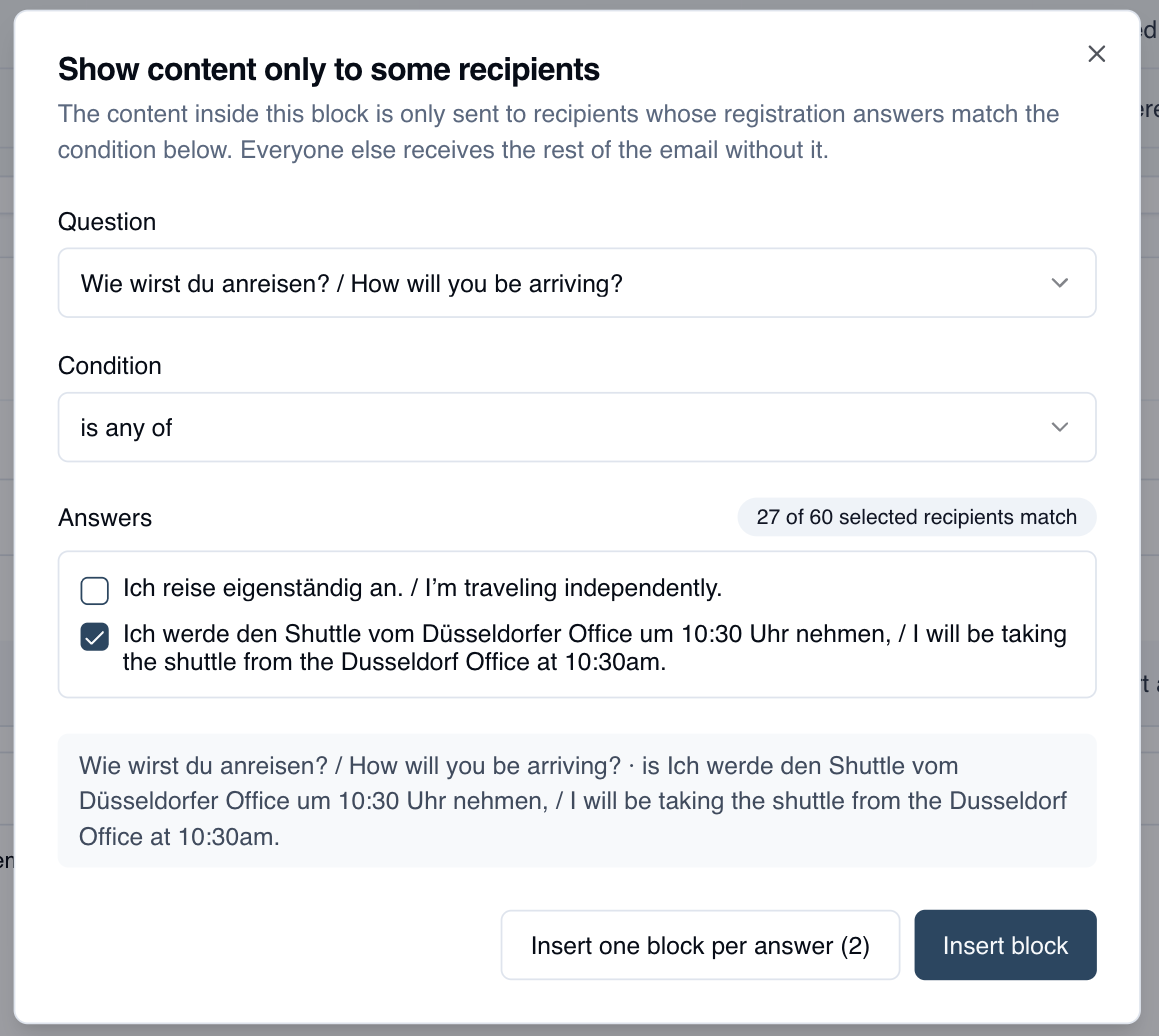
The count beside Answers updates as you tick options, so you can see how many of your chosen recipients a block will actually reach before you insert it.
One block per answer
When the content differs for every option, use Insert one block per answer instead. It inserts one block per option in a single step, each already labelled, so you only have to fill in the text. This is the quickest way to handle a question like "How will you be arriving?" where each answer needs its own instructions.
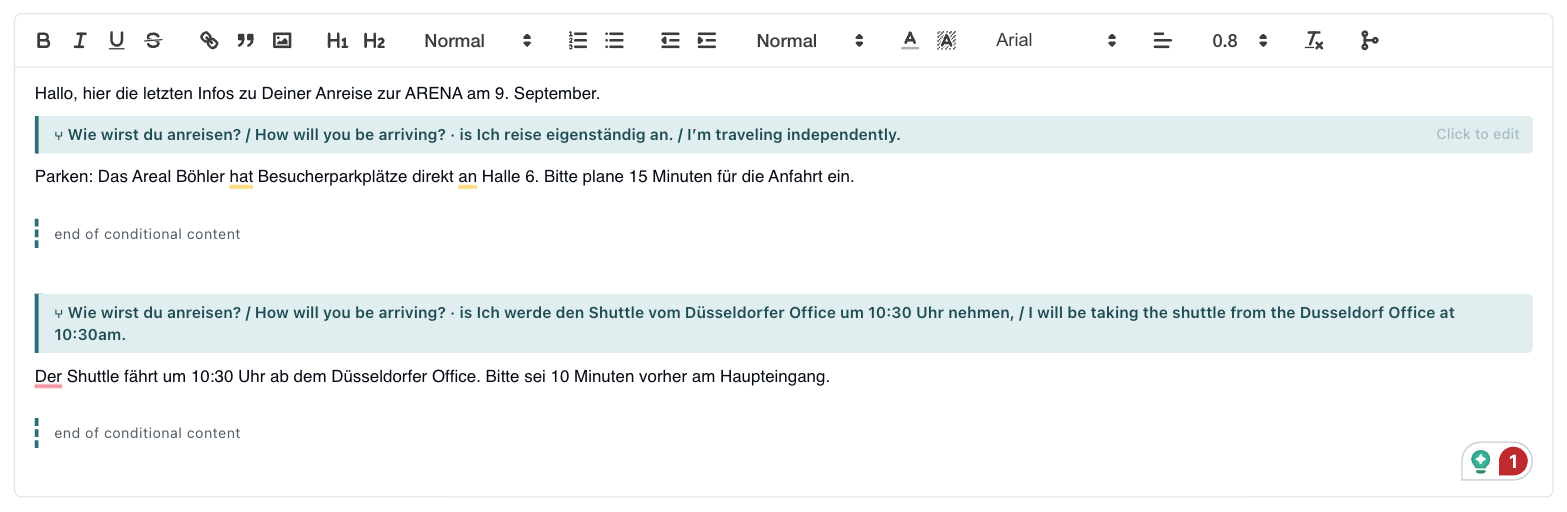
The editor shows each block between two bands: a labelled band saying what the condition is, and a thinner one marking where it ends. Type between them exactly as you would anywhere else — formatting, images, links and placeholders all work inside a block.
Editing or removing a block
Click the labelled band to reopen the rule. The same dialog has a Remove block button, which deletes the two bands and keeps your content.
Knowing who will get what
On a newsletter, the rule builder shows a live count next to the answers, for example "27 of 60 selected recipients match". If it says nobody matches, the block would be sent to no one, and you get a warning. Before you have chosen recipients, the count is measured against everyone on the event instead.
On the confirmation email there is no recipient list, because the email goes to whoever registers next. If the event already has attendees, the count is shown retrospectively instead: "27 of 60 people who already registered would have received this".
Previewing
Click Preview to see the email as one recipient would receive it.
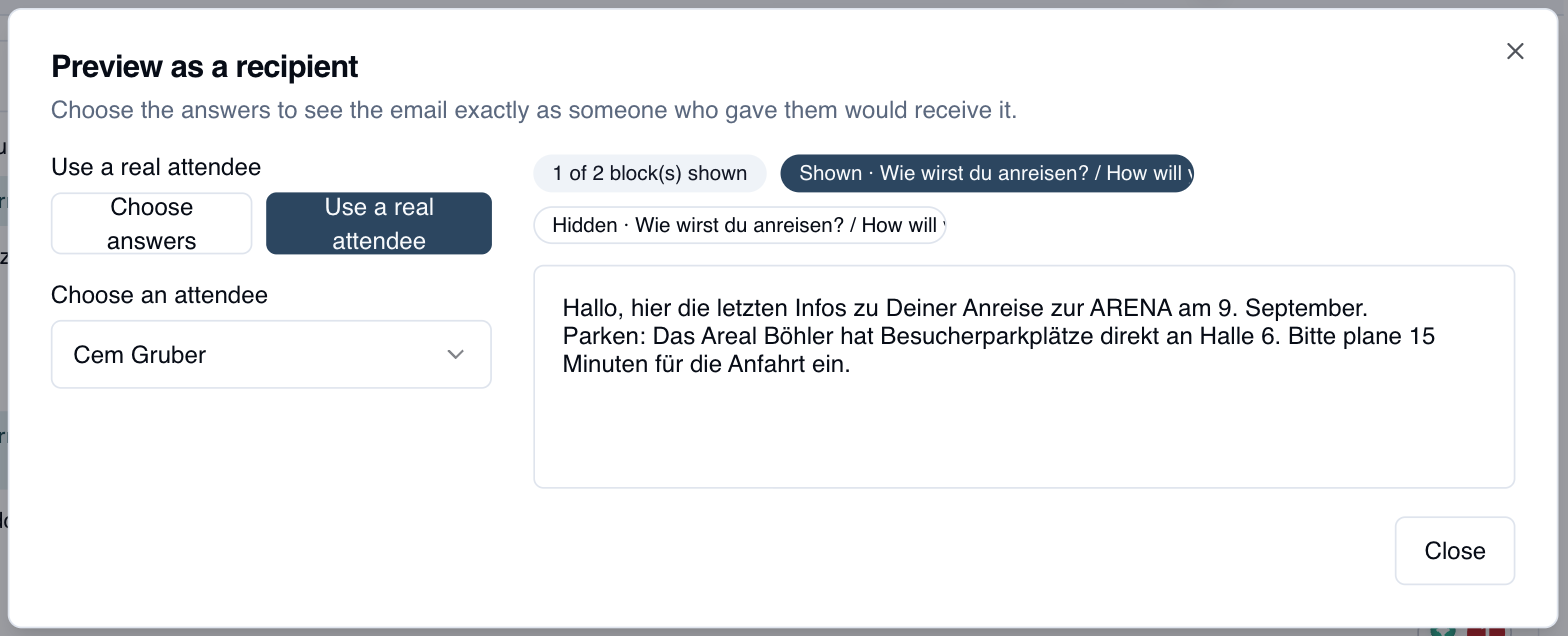
- Choose answers lets you pick an answer for each question the email branches on and watch the email change. This is the only mode available before anyone has registered, and it is the fastest way to check every branch.
- Use a real attendee renders it against someone who has actually registered.
Each block is tagged Shown or Hidden for the person you are previewing as, and the panel on the right shows the finished email with the hidden blocks removed.
For a final check on a newsletter, Send Test Email delivers a real message so you can confirm the formatting in a real inbox.
Drafts
Conditional blocks are saved with a draft and come back intact when you reopen it, so you can build a complex email over several sittings. In the email history list, a saved email shows its blocks as labelled badges, so you can tell at a glance that it varied by answer.
Things to know
A block is never half-sent. Recipients receive either the whole block or nothing, and they never see the markers.
Unanswered counts as "not any of". If someone skipped the question entirely, they are included by is not any of. "Everyone who did not pick the shuttle" is usually meant to include people who never told you.
Deleting a question breaks its blocks. If you delete a question that an email conditions on, that block is reported as an error and is not sent to anyone. Fix or remove the block.
Renaming an answer option leaves the block pointing at an option that no longer exists. You get a warning rather than an error, so you can still save, but the block will reach nobody until you fix it.
Duplicating an event keeps your blocks working. Conditions carry over to the copy along with the email content.
Errors block sending. A newsletter with a broken block cannot be sent, and an event whose confirmation email has a broken block cannot be saved. The confirmation email is strict on purpose: there is no later review step, and the next person who registers would receive it.
Troubleshooting
The toolbar button is missing. The event has no questions yet. Add a registration question first.
"This event does not ask any questions yet" — same cause: there is nothing to base a condition on.
A block shows an orange band. Its question no longer exists on this event. Click the band to pick a different question, or remove the block.
The email arrived without the block. Check the recipient's answer on their attendee record. If they did not choose the option the block is conditioned on, the block is correctly omitted.